
How to Add BigQuery as a Data Source to Data Studio
BigQuery offers a direct integration with Data Studio. If you're working in Data Studio, learn how to add your Shape Data Warehouse data from Google BigQuery in a few easy steps.
Adding BigQuery as a Data Source in Data Studio
Once your Shape Data Warehouse is spun up, you can add Google BigQuery as a data source in Google Data Studio.
To add BigQuery as a data source to Data Studio, your Shape Data Warehouse will need to be activated first. To activate your Shape Data Warehouse, follow these directions.
1. Navigate to Google Data Studio and create a new report.
2. You'll be asked to add an existing data source or "Create New Data Source." Select "Create New Data Source."
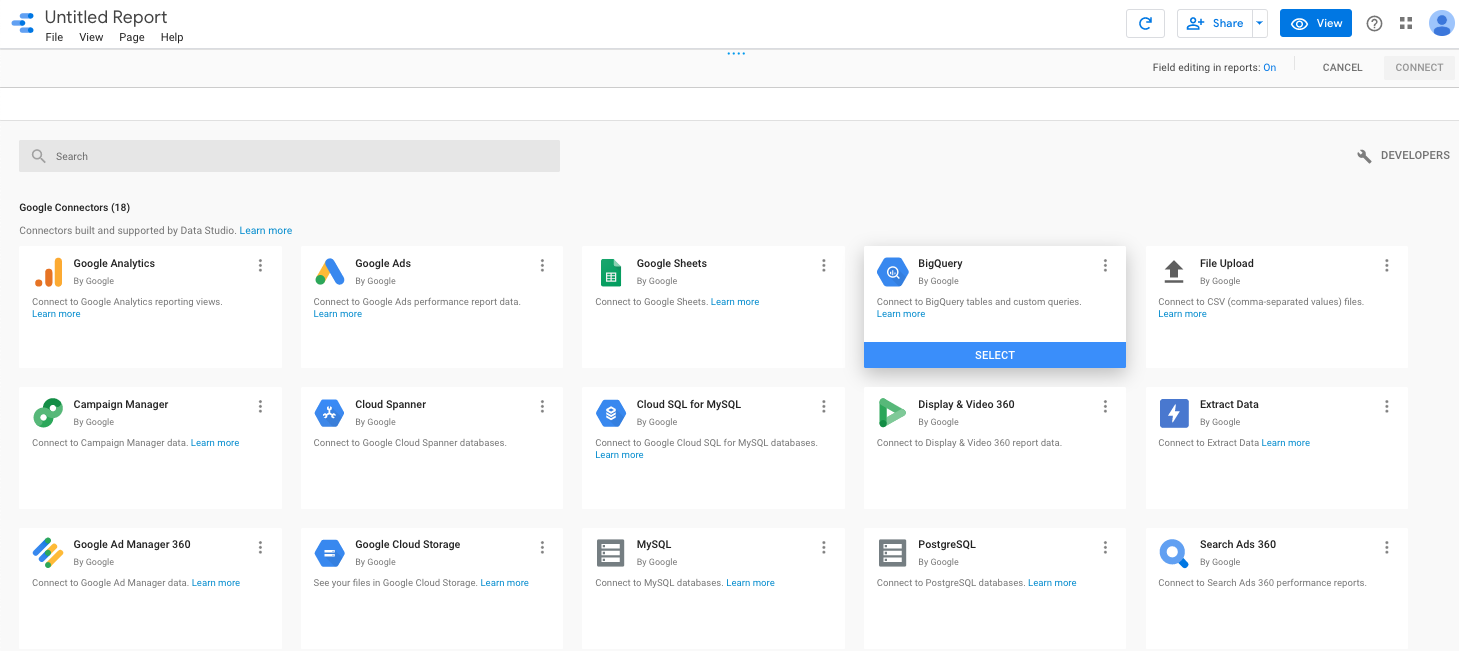
3. A list of Data Studio Connectors will appear. Select "BigQuery."
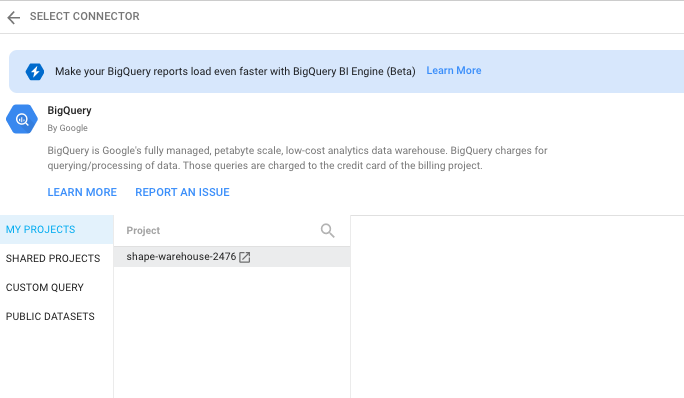
4. You should be taken to a screen where you will be asked to select a BigQuery project. Under the "My Projects" tab you will see a project named "shape-warehouse-####".
5. Click "shape-warehouse-####."
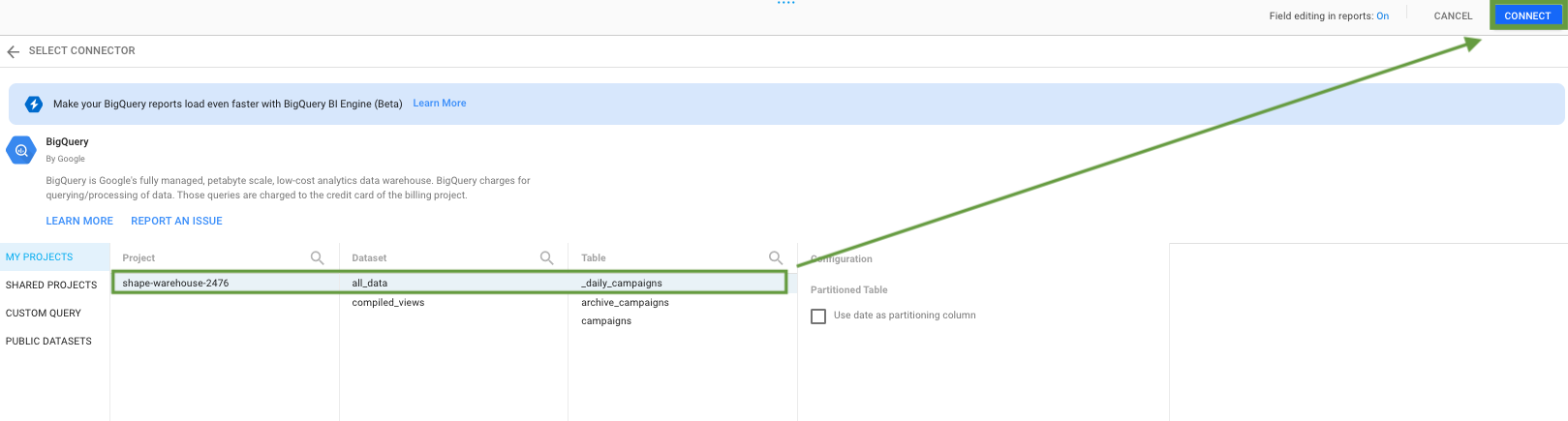
6. You can select "all_data" or "compiled views." "All_data" includes all the tables you have access to, while "compiled views" includes all the views" available. Learn about the differences between tables and views here.
7. Optional - You can select whether you want a table partitioned. This divides large tables into smaller segments. Shape Data Warehouse tables are designed to be easily and quickly queried by Google BigQuery and Data Studio, so this may not be necessary. However, you select this if desired.
8. Click connect in the upper right-hand corner.
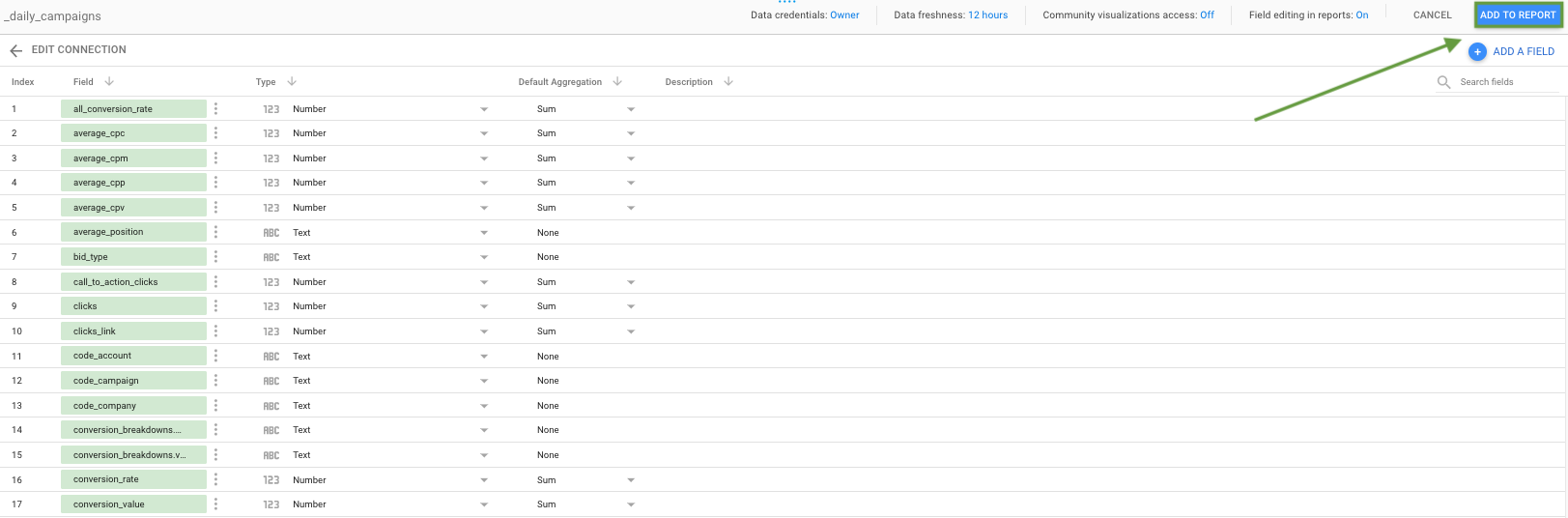
9. On the following screen, you'll see the fields available for the data source. Click "Add to Report." Your data is now available in Google Data Studio!
Updated 3 months ago